
What it puts on your desktop
Video, pictures and web pages, all of them behind your icons — which stay exactly where they were, still visible and still clickable. The same on a Mac and on Windows, except where a card says otherwise.
Video
Looping video decoded by the system itself, on the hardware, not by a browser pretending to be a video player.
Images and GIFs
Still pictures, and animated GIFs played at the delays the file actually asks for rather than a guessed frame rate.
Web pages
Local HTML and WebGL in a sandbox, with no network. On a Mac you can allow it for one wallpaper.
A different one on each screen
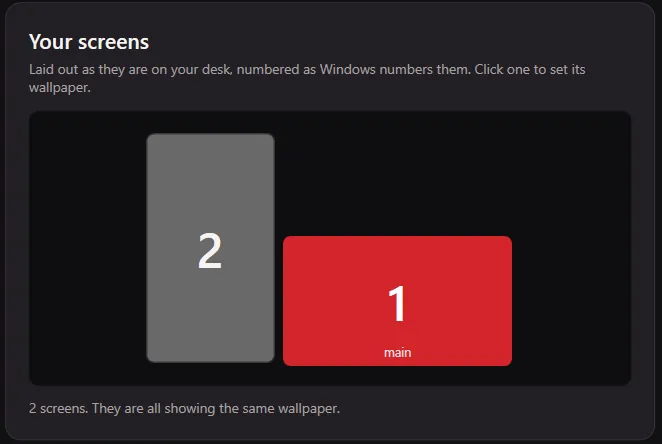
Wallgami draws your monitors in their real positions and orientations, so you can tell which is which before you give one its own wallpaper.
One per virtual desktop
On Windows, assign a wallpaper to a virtual desktop and it switches with you when you press Win+Ctrl and an arrow key.
From a link
Paste a YouTube link — or one from many other video sites — and it arrives in your library with its credits. Or browse YouTube inside the app and choose “Use this video”.
Loops without a jump
Ping-pong plays a clip forwards and then backwards, so a loop that was never made to loop has no seam.
Small pictures, made bigger
An AI upscaler (built in on a Mac, a one-time download on Windows) rebuilds a low-resolution picture at your screen’s size, and sharpening helps a soft one. All of it on your own machine.
Twelve transitions
Blends, fades, wipes, slides and zooms from one wallpaper to the next, instead of a cut.
Playlists
Change wallpaper on an interval, in order or shuffled, or by the time of day — one for the morning, another at dusk.
A screen saver too
Your desktop’s wallpaper, carried on as the screen saver, so the two never disagree.
You decide when it steps aside
Wallgami gives you nine situations and four things it can do in each one, and ships with sensible answers already chosen.

 Wallgami
Playing
Dusk over the lake · 212 MB
In any of these, it can
Keep playing, mute itself, pause, or stop and give the memory back. You pick which, for each one. The window rules work per screen, so a full-screen game on one monitor pauses that monitor only.
- A game or video goes full screen
- A window is maximised over it
- A window has focus
- Windows cover most of the screen
- You unplug the charger
- Energy saver (Windows) or Low Power Mode (Mac) turns on
- You lock the screen
- Someone connects by Remote Desktop (Windows), or the Mac’s session moves to another screen or user
- The display goes to sleep
Stopping actually gives the memory back
“Pause” in most apps means the picture freezes and everything it was holding stays held. Wallgami keeps that as an option, and adds a real stop: the decoder is released and graphics memory goes from 212 MB to 95 MB (measured on Windows). On the small machines this feature exists for, that is the difference between a nice desktop and a slow one.
An overlay is not a full-screen game
On Windows, Discord, RivaTuner and the GeForce overlay all put a transparent window the size of your screen in front of everything. Apps that check for “something full screen” pause forever and get blamed for being broken. Wallgami tells the difference.
Get Wallgami
Free, for Mac and Windows 11.
- Find Wallgami in your Downloads. Safari unzips it for you; otherwise, double-click the zip.
- Drag Wallgami into Applications. On an account that is not an administrator, macOS asks for an administrator’s password here.
- Open it. macOS asks once whether to open an app downloaded from the internet. Wallgami is signed with an Apple Developer ID and notarized by Apple, so there is no warning to get past.
- Edge may say the file “isn’t commonly downloaded”, because it is new and not code-signed yet. Click … beside it and choose Keep; when Edge asks again, open the arrow beside Delete and choose Keep anyway.
- Open the installer from your Downloads. It installs for you alone, so it does not ask for an administrator. If Windows shows a blue “Windows protected your PC” box, click More info, then Run anyway.
- Click through the installer. It can also fetch the optional AI upscaler (about 43 MB) and start Wallgami with Windows; both are yours to untick.